
The Apple TV 4K has a maximum resolution of 3,840 x 2,160 pixels and supports Dolby Vision, HDR10+ (starting from the 3rd generation), as well as classic HDR10. Not all televisions labeled “4K” take full advantage of this box. The difference lies in three measurable axes: the version of the HDMI port, the HDR formats actually decoded, and the management of frame rate changes.
HDMI, HDR, and Frame Rate: Technical Criteria Checklist
Before comparing TV models, it is essential to identify the specifications that determine the quality of the signal between the Apple TV 4K and the screen. The table below summarizes the parameters to consider.
| Criterion | Minimum Required | Recommended |
|---|---|---|
| Resolution | 3,840 x 2,160 (4K) | 3,840 x 2,160 (4K) |
| HDMI Port | HDMI 2.0 (18 Gbit/s) | HDMI 2.1 (if gaming console is used simultaneously) |
| HDR | HDR10 | Dolby Vision + HDR10+ |
| Accepted Frequency | 4K at 60 Hz | 4K at 60 Hz + Quick Media Switching (QMS) |
| Audio | ARC Output | eARC (for lossless Dolby Atmos) |
The Apple TV 4K delivers a video signal up to 4K at 60 frames per second. Paying extra for a 4K 120 Hz panel only makes sense if a gaming console shares the same TV.
To choose a TV for Apple TV 4K effectively, you need to check each of these lines in the TV’s technical specifications, not just the diagonal or the mention of “Smart TV”.
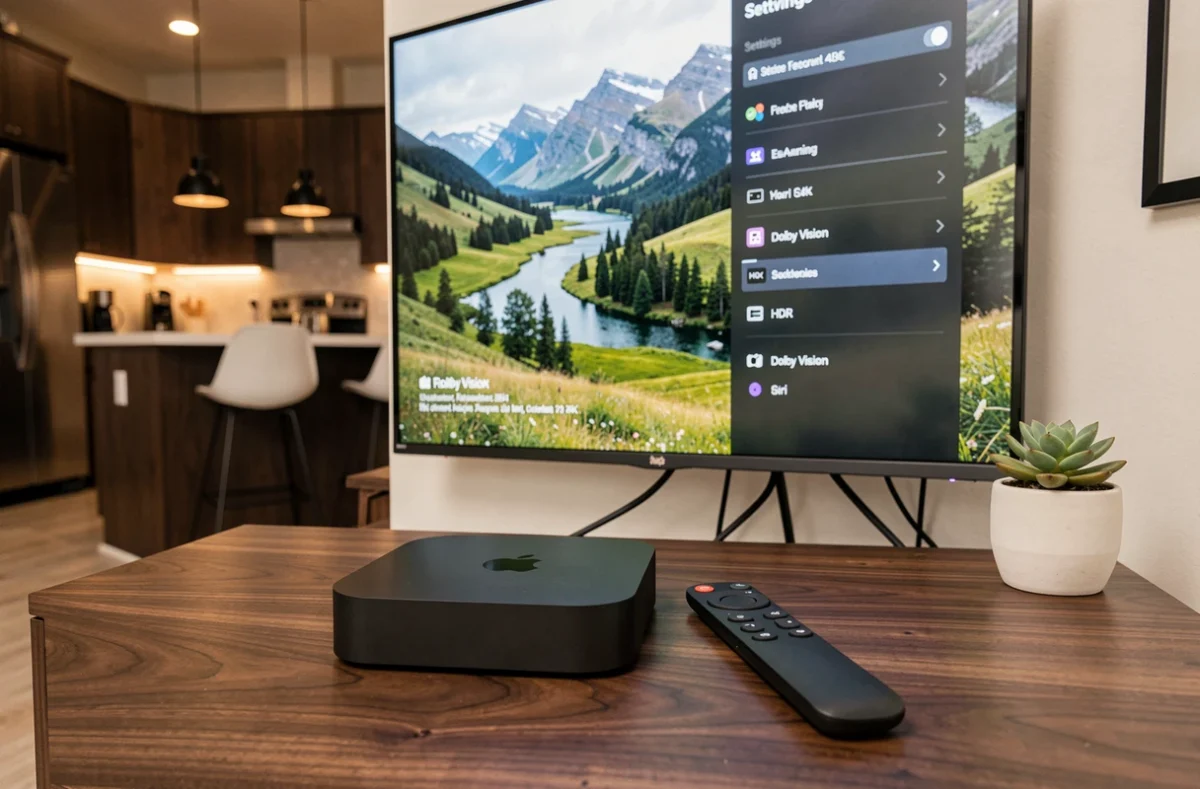
Dolby Vision, HDR10+, and HDR10: Real Differences Between Formats on Apple TV 4K
The Apple support page lists four video output modes: 4K Dolby Vision, 4K HDR10+, 4K HDR10, and 4K SDR. The first three seem close on paper, but their operation differs.
Dolby Vision applies dynamic scene-by-scene processing. Each shot receives its own brightness and color metadata. HDR10+ operates on the same principle of dynamic metadata, while HDR10 uses static metadata, which is the same from the beginning to the end of the film.
In practice, a Dolby Vision-compatible TV will display more readable shadows in a dark scene followed by a sequence in bright sunlight, whereas a screen limited to HDR10 maintains a compromise setting for all content.
Point of Caution on the 3rd Generation
HDR10+ is only supported by the 3rd generation Apple TV 4K. Earlier models do not support this format. If the desired TV only lists HDR10+ as the advanced standard (some Samsung models, in particular), checking the generation of the Apple box is a prerequisite.
Match Frame Rate and Quick Media Switching: Comfort Not Shown in Product Specs
A film shot at 24 frames per second and displayed on a screen set to 60 Hz undergoes conversion processing. The Apple TV 4K offers the Match Frame Rate feature, which automatically adjusts the output to the native cadence of the content.
The frequency change causes a black screen for a few seconds on most TVs, while the panel resynchronizes. The Quick Media Switching (QMS) feature eliminates this transition black, provided that the TV and the entire HDMI chain support it.
- A QMS-compatible TV via HDMI 2.1 switches frequency without visible interruption.
- An amplifier or soundbar placed between the Apple TV and the TV must also support QMS; otherwise, this link will cause the black screen.
- Without QMS, Match Frame Rate remains useful for image fidelity, but the comfort of switching between content decreases.
Few product specifications explicitly mention QMS. The most reliable method is to check for complete HDMI 2.1 compatibility (not just bandwidth) in the manufacturer’s technical documentation.

The Amplifier or Soundbar as the Limiting Link of the HDMI Signal
A TV may check all the boxes (Dolby Vision, eARC, HDMI 2.1) and still display a degraded signal. The cause often lies upstream: the audio receiver or soundbar connected between the Apple TV 4K and the screen.
An HDMI switch or an older amplifier may not relay Dolby Vision or HDR10+. The signal then transmits in HDR10 or SDR without the user receiving any alert. Apple recommends, in case of doubt, to temporarily connect the box directly to the TV to isolate the problem.
Concrete Check of the Audio-Video Chain
- Connect the Apple TV 4K to the TV’s eARC HDMI input and note the format displayed in Settings > Video and Audio.
- Then insert the soundbar or amplifier and check if the detected HDR format changes.
- If the format switches to HDR10 or SDR, the audio device is not transmitting the advanced metadata.
This test takes less than five minutes and prevents questioning the TV when the problem comes from an HDMI cable or intermediate equipment.
HDMI Cable: The Specification That Matters More Than Price
The Apple TV 4K requires an HDMI cable capable of carrying a 4K HDR signal at 60 Hz. An “Ultra High Speed” certified cable covers all use cases, including Dolby Vision and eARC.
Cables provided with some TVs may date back to earlier standards. An HDMI “High Speed” (category 2) is sufficient for 4K SDR, but may cause artifacts or revert to 1080p with HDR content. The mention “Ultra High Speed” (48 Gbit/s) guarantees compatibility with HDMI 2.1 and all formats supported by the Apple TV 4K.
The determining factor for fully utilizing the Apple TV 4K is not the screen size or the brand of the TV. It is the verified compatibility of each element in the chain, from the HDMI port to the cable, including any audio equipment in between.